

Every few weeks someone sends me a contact list and says the same thing. “It should be a quick fix, but I can’t figure out how to get the names into two columns.” Usually it’s a CRM export, a mailing list, or a sign-up sheet, and the full name sits in one cell: “Sarah Johnson”, “Robert Downey Jr.”, “Smith, John”, “Maria de la Cruz”.
Splitting those into a first name column and a last name column is one of the most common cleanup jobs in Excel. It’s also one where the quick answer works on the first twenty rows and then falls apart on row twenty-one.
This guide covers six ways to do it: Text to Columns, Flash Fill, classic formulas, the newer TEXTSPLIT family, Power Query, and VBA. I’ll tell you when each one is the right call, where each one breaks, and what to do about the awkward names that every real list contains. Everything here uses US English spellings and works in Excel for Microsoft 365. I flag the spots where older versions behave differently.
What Is the Fastest Way to Separate First and Last Names in Excel?
If every name in your list is exactly two words with a single space between them, Text to Columns is the fastest method. Select the column, go to Data, click Text to Columns, choose Delimited, pick Space, and click Finish. It takes about fifteen seconds for any number of rows.
If the list has middle names, titles, or mixed formats, the fastest method depends on what you need afterward. Here is a quick comparison before we go through each one in detail.
Method | Best for | Updates automatically? | Excel versions |
Text to Columns | One-time split of clean names | No | All versions |
Flash Fill | Quick pattern-based split | No | 2013 and newer |
LEFT, RIGHT, and FIND formulas | Lists that keep changing | Yes | All versions |
TEXTSPLIT, TEXTBEFORE, TEXTAFTER | Clean one-formula splits | Yes | Microsoft 365, Excel 2024, Excel for the web |
Power Query | Repeating imports and large files | On refresh | 2016 and newer |
VBA macro | Messy names and custom rules | When you run it | All desktop versions |
How Do You Separate Names Using Text to Columns?
Text to Columns is a built-in wizard that cuts one column into several at a character you choose. For names, that character is usually a space.
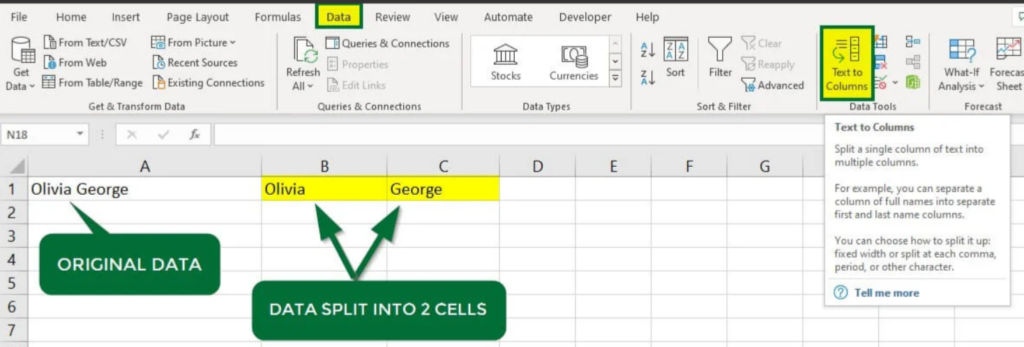
- Before you start, insert at least two blank columns to the right of your names. Text to Columns writes over whatever sits in its way, and it does not ask permission.
- Select the column that holds the full names.
- Go to the Data tab and click Text to Columns.
- Choose Delimited and click Next.
- Uncheck Tab, check Space, and look at the preview at the bottom of the window. Click Next.
- In the last step, you can set the destination. By default Excel writes the results over the original column. If you want to keep the original names, click the destination box and pick the first empty cell, such as $B$2.
- Click Finish.
That’s the whole process. The first name lands in the first column and the last name in the next one.
What Are the Downsides of Text to Columns?
The results are static. If someone fixes a typo in the original column afterward, the split columns don’t change. You’d run the wizard again.
It also splits on every space it finds. A name like “Mary Margaret Jones” becomes three columns, and “Maria de la Cruz” becomes four. According to the Constant Contact knowledge base, hyphenated names such as Mary-Margaret or Smith-Jones stay together because there’s no space to split on, while compound names without a hyphen get broken into separate pieces that you need to recombine by hand. That guidance is written for people preparing contact imports, but it describes the behavior accurately for any list.
My rule: use Text to Columns when the list is clean, small, and a one-time job. Always scan the result for rows that spilled into a third or fourth column.
How Do You Split First and Last Names With Flash Fill?
Flash Fill watches what you type and fills in the rest of the column by recognizing the pattern. It was introduced in Excel 2013, so any modern version has it.
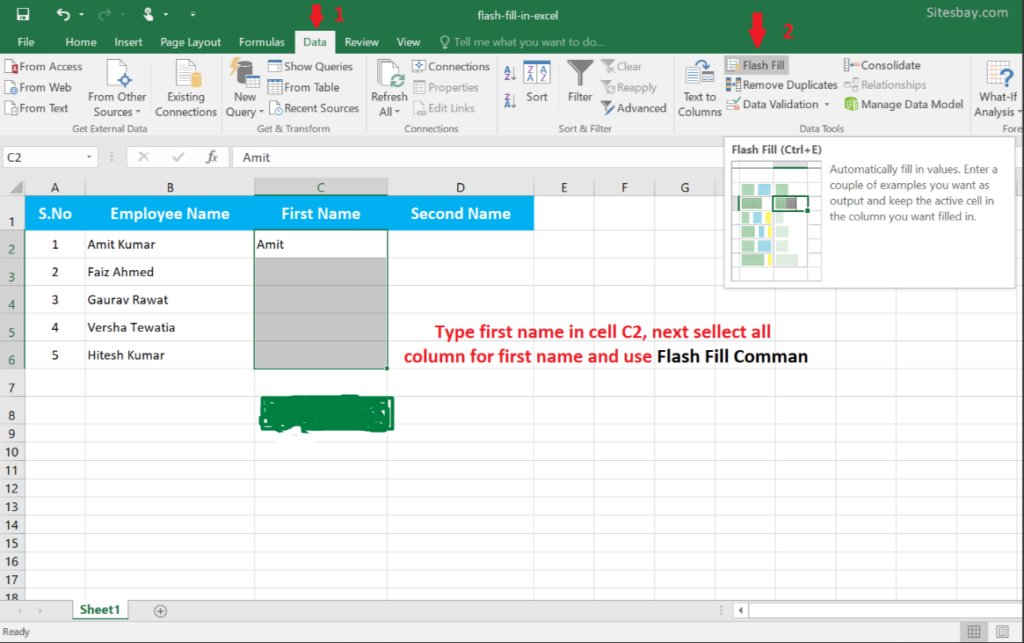
- Put your cursor in the cell next to the first full name.
- Type the first name by hand. If A2 says “Amit Kumar”, type “Amit” in B2.
- Press Enter, then start typing the next first name in B3. Excel usually shows a gray preview of the whole column. Press Enter to accept it.
- If no preview appears, select B2 and go to Data, then Flash Fill, or press Ctrl+E.
- Repeat in the next column for last names.
Flash Fill handles middle names more gracefully than Text to Columns. If your data has “John Michael Smith” and your example was “John”, Excel pulls only the first name and leaves the rest alone.
Where Does Flash Fill Go Wrong?
Flash Fill guesses. When the data is consistent, the guess is right. When some rows have two words and others have four, it can misread a pattern and produce wrong answers without any warning. I’ve seen a column of 2,000 names where Flash Fill got 1,940 right and quietly mangled the rest.
Like Text to Columns, the output is static. Change the source and the results stay as they were. If you use Flash Fill on anything that matters, scroll through the whole result before trusting it.
How Do You Separate First and Last Names With Formulas?
Formulas are the best choice when your list changes. Add a row, edit a name, and the split updates on its own. They work in every version of Excel.
What Formula Gets the First Name?
Assume the full name is in A2. This formula returns everything before the first space:
=LEFT(TRIM(A2), FIND(” “, TRIM(A2) & ” “) – 1)
Here is what each part does. TRIM removes extra spaces, including leading and trailing ones that often hide in exported data. FIND locates the first space. Adding a space to the end of the text inside FIND means a single-word name like “Madonna” doesn’t cause an error, because there is always a space to find. LEFT then returns the characters before that position.
You’ll see a simpler version in many tutorials: =LEFT(A2, SEARCH(” “, A2) – 1). It works until it meets a cell with one word in it, and then it returns a #VALUE! error. The version above avoids that.
What Formula Gets the Last Name?
To get the last word in the cell, use:
=TRIM(RIGHT(SUBSTITUTE(TRIM(A2), ” “, REPT(” “, 100)), 100))
This looks strange, but it’s reliable. SUBSTITUTE replaces every space with 100 spaces. RIGHT grabs the last 100 characters, which now consist of a lot of padding and then the final word. TRIM strips the padding and leaves just the last word.
The reason I prefer it over the simpler =RIGHT(A2, LEN(A2) – SEARCH(” “, A2)) is that it always returns the final word, whether the name has two parts or five. The simple version returns everything after the first space, so “John Michael Smith” gives you “Michael Smith”.
How Do You Get the Middle Name?
With the first name in B2 and the last name in D2, this formula returns whatever sits between them:
=TRIM(MID(TRIM(A2), LEN(B2) + 1, LEN(TRIM(A2)) – LEN(B2) – LEN(D2)))
If there is no middle name, it returns an empty result. Put this in column C and you have first, middle, and last in three clean columns.
What Happens If a Cell Has Only One Name?
With the formulas above, a single name like “Madonna” returns “Madonna” in both the first name and last name columns. That’s usually not what you want. To leave the last name blank when there’s only one word, wrap it:
=IF(ISNUMBER(FIND(” “, TRIM(A2))), TRIM(RIGHT(SUBSTITUTE(TRIM(A2), ” “, REPT(” “, 100)), 100)), “”)
Drag the formulas down to fill the list. In Excel 365 you can also double-click the fill handle at the corner of the cell to fill to the end of your data.
How Do You Split Names With TEXTSPLIT, TEXTBEFORE, and TEXTAFTER?
Microsoft 365, Excel 2024, and Excel for the web have three text functions that make all of this much shorter. They aren’t available in Excel 2021, 2019, or older. If you try them there, you get a #NAME? error.
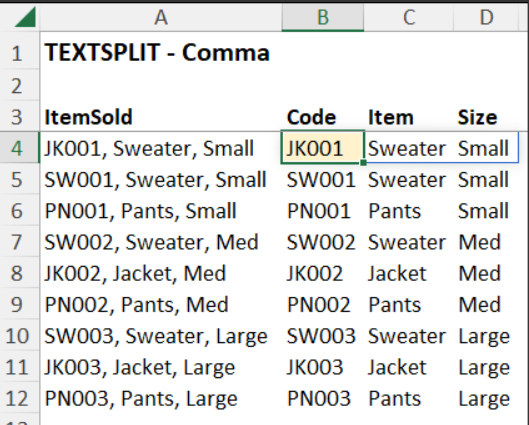
How Does TEXTSPLIT Work?
TEXTSPLIT cuts a text string at a delimiter and spills the pieces into neighboring cells. For a name in A2:
=TEXTSPLIT(A2, ” “)
Enter it once and the first name appears in the cell with the formula and the last name spills into the cell to its right. No dragging across columns. The example in the screenshot above uses the same idea with a comma as the delimiter, splitting “JK001, Sweater, Small” into three columns. For three-part names, you get three cells.
To clean stray spaces first, nest TRIM inside: =TEXTSPLIT(TRIM(A2), ” “).
How Do You Get Only the First or Last Name?
Two companion functions grab one piece at a time:
- First name: =TEXTBEFORE(A2, ” “)
- Last name: =TEXTAFTER(A2, ” “, -1)
The -1 in the second formula tells Excel to count from the right, so it returns everything after the last space. That is the same job the SUBSTITUTE and REPT formula does, in a fraction of the characters.
To get the first and middle names together, use =TEXTBEFORE(A2, ” “, -1), which returns everything before the last space.
For a list that might contain single names, add an if-not-found value as the fourth argument: =TEXTBEFORE(A2, ” “, , , , A2) returns the original text when there’s no space. Without that, a one-word name returns an error.
I use these three functions on every project where the client’s Excel version supports them. The formulas are short enough that someone else can read them a year later, and that matters more than people think.
How Do You Separate Names in “Last Name, First Name” Format?
Many systems export names with a comma: “Smith, John”. The comma makes things easier because it marks the boundary exactly.
With Text to Columns, choose Comma instead of Space in the delimiter step. You’ll get a leading space on the first name, so use TRIM on the results or check Treat consecutive delimiters as one.
With formulas:
- Last name: =LEFT(A2, FIND(“,”, A2) – 1)
- First name: =TRIM(MID(A2, FIND(“,”, A2) + 1, 100))
With the newer functions:
- Last name: =TEXTBEFORE(A2, “,”)
- First name: =TRIM(TEXTAFTER(A2, “,”))
If your list mixes both formats, “John Smith” in some rows and “Smith, John” in others, test for the comma first with an IF statement. In practice I’d rather clean this with Power Query or a macro, because mixed formats are where plain formulas get long and hard to maintain.
How Do You Split Names With Power Query?
Power Query is the right tool when you receive the same kind of file over and over, or when the list is too large to be comfortable with formulas. It records each step and replays it every time you refresh.
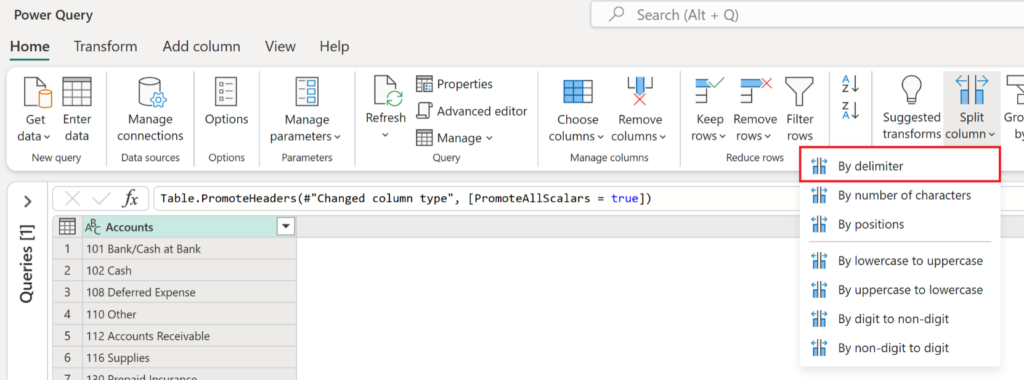
- Select any cell in your data and press Ctrl+T to turn it into a table if it isn’t one already.
- Go to Data and click From Table/Range. The Power Query Editor opens.
- Click the name column header to select it.
- On the Home tab, click Split Column and choose By Delimiter.
- Pick Space as the delimiter. Under “Split at,” choose Left-most delimiter if you want the first name separated from everything else, or Right-most delimiter if you want the last name separated from everything else.
- Click OK, rename the new columns to First Name and Last Name, and click Close & Load.
The left-most and right-most option is the part most people miss. It’s what lets Power Query handle middle names cleanly: split at the left-most space and the first name goes in one column and “Michael Smith” in the other. For a straight first-and-last split on multi-word names, split at the right-most space instead.
Next month, when a new export arrives, paste it over the old data, click Refresh, and the same split runs automatically. That repeatability is why Power Query is the better home for any cleanup you’ll do more than twice.
How Do You Turn Formula Results Into Plain Values?
Formulas keep pointing back at the original column. If you delete that column, everything breaks. Before you remove the original names or send the file to someone else, convert the results to plain text.
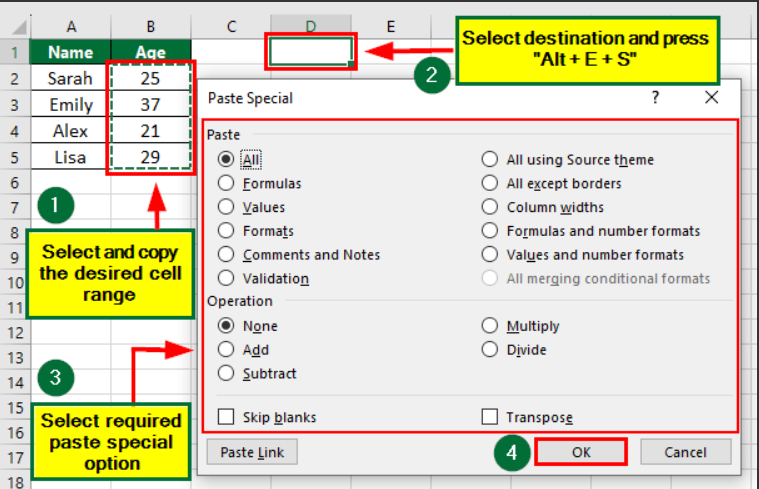
- Select the cells with the formula results and press Ctrl+C.
- Right-click the first cell of the same range.
- Choose Paste Special, or press Alt+E+S.
- Select Values and click OK.
The formulas are replaced with the text they produced. Now you can safely delete the original full name column. I recommend keeping a copy of the original data on a separate sheet first, just in case.
What Do You Do With Middle Names, Prefixes, and Suffixes?
This is where simple methods run out. Real name lists contain:
- Titles: Dr. Sarah Connor, Mrs. Alvarez, Rev. James Taylor
- Suffixes: Robert Downey Jr., Henry Ford III, Anna Lee, MD
- Compound last names: Maria de la Cruz, Ludwig van Beethoven, Anne O’Neil-Smith
- Compound first names: Mary Jo Williams, Jean Luc Picard
- Single names, initials, and nicknames: Madonna, J. R. Smith, William “Bill” Jones
No formula can know that “Jr.” belongs with the last name and “Dr.” belongs to neither. The pattern isn’t in the spacing, it’s in the meaning of the words.
You have three practical options. For small lists, split with the simplest method and fix the exceptions by hand. For medium lists, add helper columns that detect common titles and suffixes using a lookup against a short list, then strip them before splitting. For large or recurring lists, a short VBA macro handles the rules in one place.
Here’s a macro that removes common titles and suffixes, then writes the first name to the column next to the original and the last name two columns over. Adjust the lists to match your data.
Sub SplitNamesClean()
Dim cell As Range
Dim parts() As String
Dim cleaned As String
Dim titles As Variant, suffixes As Variant
Dim t As Variant, lastPart As String
titles = Array(“Dr.”, “Mr.”, “Mrs.”, “Ms.”, “Miss”, “Prof.”, “Rev.”)
suffixes = Array(“Jr.”, “Sr.”, “II”, “III”, “IV”, “MD”, “PhD”)
For Each cell In Selection
cleaned = Application.WorksheetFunction.Trim(cell.Value)
If cleaned <> “” Then
For Each t In titles
If LCase(Left(cleaned, Len(t) + 1)) = LCase(t) & ” ” Then
cleaned = Trim(Mid(cleaned, Len(t) + 2))
End If
Next t
parts = Split(cleaned, ” “)
cell.Offset(0, 1).Value = parts(0)
If UBound(parts) > 0 Then
lastPart = parts(UBound(parts))
For Each t In suffixes
If LCase(lastPart) = LCase(t) And UBound(parts) > 1 Then
lastPart = parts(UBound(parts) – 1) & ” ” & lastPart
End If
Next t
cell.Offset(0, 2).Value = lastPart
End If
End If
Next cell
End Sub
To use it, press Alt+F11, choose Insert, then Module, and paste the code. Close the editor, select the cells with the full names, press Alt+F8, pick SplitNamesClean, and click Run. Test it on a copy of your file first. Macros can’t be undone with Ctrl+Z.
It handles titles and suffixes, but it still treats “de la Cruz” as a first name followed by “Cruz”. Particles like de, van, von, and la need their own rules, and the right rule depends on your data. If you have a lot of international names, that’s usually where a custom solution pays for itself.
Why Do Some Names Not Split Correctly?
When a split produces odd results, the cause is almost always one of these.
Extra spaces. Leading, trailing, or double spaces create empty columns or shift names over. TRIM fixes all three. In Text to Columns, check “Treat consecutive delimiters as one.”
Non-breaking spaces. Data copied from websites and PDFs often contains a special space character, code 160, that looks identical to a normal space but doesn’t match one. FIND(” “) won’t see it. Clean it first with =SUBSTITUTE(A2, CHAR(160), ” “), then split the cleaned result.
Text to Columns overwriting data. If columns to the right already hold data, the wizard replaces it. Insert blank columns first.
Formulas stopping at one name. If you get #VALUE! on some rows, those cells have no space in them. Use the FIND with the trailing space trick shown earlier, or wrap the formula in IFERROR.
Mixed formats. If some rows are “John Smith” and others are “Smith, John”, no single method gets everything right. Separate the two groups first, using a helper column that checks for a comma, and split each group with the right method.
Hidden characters. Line breaks inside cells, tabs, and other invisible characters can interfere. =CLEAN(A2) removes most of them.
Which Method Should You Choose?
Match the method to the job, not the other way around.
- A one-time split of a clean list: Text to Columns.
- A quick job where you can check every result: Flash Fill.
- A list that changes and has to stay current: formulas, or TEXTSPLIT, TEXTBEFORE, and TEXTAFTER if your version supports them.
- A file that arrives in the same format every week or month: Power Query.
- Names with titles, suffixes, particles, or mixed formats: VBA, with rules built around your data.
Whichever method you pick, keep the original column until you’ve checked the results. Sort the output alphabetically and scan the top and bottom of the list, where the odd entries tend to land. Then filter the last name column for blanks and for any cell that contains a space or a period. Those are the rows worth reading by hand.
When Should You Get Help With Messy Name Data?
For most lists, the methods above are enough. A one-time split of a few hundred clean names is a ten-minute job.
It’s worth getting help when the same messy export shows up every month and someone is fixing it by hand each time, when the list feeds a CRM or a mailing system where a bad split causes a failed import or an embarrassing “Dear Jr.” email, or when the names are mixed with addresses, account numbers, or other fields in a layout that isn’t a clean table.
That’s the kind of work I do at JAAD Group. I look at what your data actually contains, build the logic to clean and split it reliably, and hand it over documented so your team can run it without me. If you’d like to see what that looks like, you can read about my Excel automation services or my Excel programming and VBA macro development work. If you’re not sure whether the job justifies outside help, I wrote a short guide on when to outsource your Excel work.