

Every messy spreadsheet I have ever been hired to fix had one thing in common. Somewhere in it, a person was allowed to type whatever they wanted into a cell. One person types “Net 30,” the next types “net30,” a third types “30 days,” and six months later nobody can filter that column or build a PivotTable from it without spending an afternoon cleaning it up first.
A drop-down list is the simplest fix for that problem. You give people a short menu of approved choices, and Excel refuses anything else. Setting one up takes about a minute. The catch is that the basic version everybody learns first starts to fall apart the moment your list grows, changes, or needs to depend on another cell.
This guide covers the full range: the basic method, lists that update themselves, dependent lists where the second menu changes based on the first, a couple of VBA tricks Excel can’t do on its own, and the problems I see people run into again and again. Where Microsoft’s documentation or the Excel Easy tutorials back up a point, I’ve said so. Where 25 years of fixing other people’s workbooks tells me something different, I’ve said that too.
Everything here works in Excel 2016 and later, Microsoft 365, and mostly the same way on Mac and Excel for the web. I’ll flag the few spots where your version matters.
Why Drop-Down Lists Matter More Than They Look
Most people think of a drop-down as a convenience. It saves typing, sure. But the real value is consistency, and consistency is what makes every formula downstream behave.

A SUMIF or COUNTIF only matches text that is exactly the same. “Acme Inc” and “Acme, Inc.” are two different customers as far as Excel is concerned. So is “Paid” with a trailing space after it, which you cannot see and which will quietly drop invoices out of your totals. I have found that exact problem in a client’s accounts receivable report more than once.
Free typing is also where a lot of messy exported data begins. When a column of status codes, department names, or account categories is typed by hand for a year, whatever you export from it later carries every variation along for the ride. Fixing it afterward is possible, but it is far cheaper to stop the variation at the source.
How to Create a Basic Drop-Down List in Excel
Build the List First
Before you touch any settings, type your list items somewhere in the workbook. A separate sheet named Lists is a good habit. Put one item per cell, no blanks in between, and leave the header out of the range you’ll point to later, because you don’t want the header to be a selectable option.
Microsoft’s own instructions recommend putting the items in an Excel Table, and I agree. Click anywhere in the list and press Ctrl+T. According to Microsoft’s drop-down list guide, when the source is a table, any drop-down based on it updates on its own as you add or remove items. It’s also a good moment to sort the list, since the menu will show items in the order they sit on the sheet.
Set Up Data Validation
Drop-downs in Excel are built with a feature called Data Validation. The steps:
- Select the cell where the menu should appear.
- Go to the Data tab and click Data Validation.
- On the Settings tab, open the Allow box and choose List.
- Click in the Source box, then select your list range on the sheet. In current versions you can select a range on a different sheet directly.
- Leave In-cell dropdown checked. That checkbox controls whether the arrow shows up at all.
- Click OK.
That’s the whole thing. Click the cell and an arrow appears at its right edge. If you’d rather people can’t see or edit the source list, right-click the sheet tab and hide it, as the Excel Easy walkthrough suggests, or hide and protect it as Microsoft does.
One setting deserves a closer look: Ignore blank. Microsoft’s guide says to check it if it’s fine for people to leave the cell empty. There’s a quirk worth knowing, though. If your source range points to a named range that contains blank cells, and Ignore blank is checked, Excel will accept any value typed into the cell, which defeats the entire purpose. Keep the source range clean, or uncheck the box.
Typing the Items Directly Into the Source Box
You can skip the separate list and type the choices straight into the Source box, separated by commas: Yes,No,Maybe. It’s quick, and I use it for tiny, permanent lists.
Two things to know. Excel Easy points out that a list typed this way becomes case sensitive, so someone typing “yes” will trigger the error alert even though “Yes” is on the menu. And a typed list has a length ceiling of roughly 255 characters, so it won’t scale. If the list might ever change, put it on a sheet.
Add an Input Message and an Error Alert
The Data Validation box has two more tabs that most people skip, and they’re worth two minutes.
The Input Message tab lets you show a small note whenever the cell is selected, something like “Choose a payment term from the list.” It’s useful when someone other than you fills in the workbook.
The Error Alert tab controls what happens when someone types something that isn’t on the list. You get three styles. Stop refuses the entry outright. Warning tells the person the entry isn’t on the list but lets them keep it if they click Yes. Information lets it through after they click OK. If you leave the title and message blank, Microsoft notes the alert defaults to a generic “Microsoft Excel” title and a message saying the value isn’t valid, which tells the person nothing useful. Write your own: “Pick one of the payment terms from the menu.”
If you want a menu that also allows other entries, Excel Easy’s approach is simply to uncheck “Show error alert after invalid data is entered.” I’d usually choose the Warning style instead, since it still nudges people toward the list.
How to Add a Drop-Down List to Many Cells at Once
Select the whole range first, for example D2:D500, and then run through Data Validation once. Every cell in the selection gets the same menu.
If you’ve already built one cell, copy it with Ctrl+C, select the destination cells, and paste with Ctrl+V. That copies the validation along with the cell.
I’d avoid selecting an entire column, because the header cell gets a menu too, and it’s a nice way to end up with “Payment Terms” as a selectable option. Converting the data into a table solves the growth problem better: when you add new rows to a table, the validation carries down with them.
Watch out for pasting into cells that already have a drop-down. A normal paste from a cell with no validation overwrites the validation in the destination, and the menu is gone without any warning. Paste Special, then Values, leaves the drop-down intact. If you suspect entries have slipped past your rules, open Data Validation and use Circle Invalid Data from the arrow next to it. Excel draws a red circle around anything that doesn’t match.
How to Make a Drop-Down List Update Itself
A list that’s typed into the Source box, or that points at a fixed range, doesn’t notice new items. There are three good ways around that.
Use an Excel Table
This is the easiest and the one I recommend first. Put the list in a table with Ctrl+T, point the Source at the table’s column, and you’re done. Add an item to the bottom of the table and every drop-down built on it includes the new item. Microsoft’s guide makes the same point, and it matches what I see in the field.

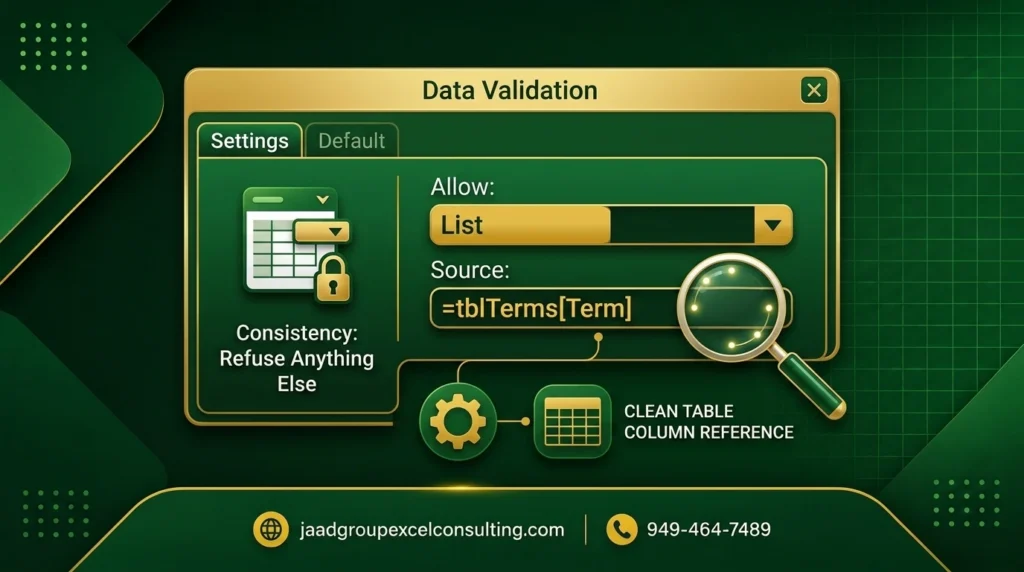
If you want a cleaner setup, give the table column a name. Go to Formulas, then Name Manager, create a name like PaymentTerms, and set what it refers to as the table column, for example =tblTerms[Term]. Then type =PaymentTerms in the Source box. Excel Easy takes a slightly different route and wraps a structured reference in the INDIRECT function, which also works.
The OFFSET and COUNTA Formula
Before tables became standard, this was how everyone did it, and you’ll still find it in older workbooks. In the Source box, enter a formula like this one from Excel Easy:
=OFFSET(Sheet2!$A$1,0,0,COUNTA(Sheet2!$A:$A),1)
Here is what it does. OFFSET starts at cell A1 on Sheet2 and returns a range that is as tall as the number of filled cells in column A, and one column wide. COUNTA does the counting. Add an item at the bottom of the list, COUNTA goes up by one, and the range grows with it.
If your list has a header in A1, start at $A$2 and subtract one from the COUNTA so the header stays out of the menu. Also remember that this formula counts everything in column A, so nothing else can live in that column. And OFFSET is a volatile function, meaning it recalculates constantly. In a huge workbook that adds up, which is one more reason I lean on tables now.
Pull Unique Items With UNIQUE and a Spill Range
In Excel 365 and Excel 2021, you can build the list itself from your data. Suppose column B of a sales table holds a region for every row. In a spare cell, say F1, enter:
=SORT(UNIQUE(tblSales[Region]))
Excel spills a clean, sorted list of regions down the column. Now in Data Validation, set the Source to =$F$1#. The hash sign tells Excel to use the entire spilled range, however tall it becomes. As Excel Easy explains, always reference the first cell of the spill and add the hash.
New region appears in the data, the spill grows, the drop-down updates. Nobody maintains a list by hand. Make sure nothing sits in the cells directly below F1, or the formula will show a #SPILL! error.
Which Method Should You Use?
Method | Updates on its own? | Best for | Version needed |
Typed list (Yes,No) | No | Tiny lists that never change | Any |
Fixed range on a sheet | Only if you insert inside the range | Short, stable lists | Any |
Excel Table | Yes | Most everyday lists | 2013 and later |
OFFSET and COUNTA | Yes | Older workbooks, no tables | Any |
UNIQUE spill range | Yes | Lists drawn from live data | 365 and 2021 |
How to Create a Dependent (Cascading) Drop-Down List
This is the one people search for after they’ve mastered the basics. The second menu changes depending on what was chosen in the first. Pick “Finance” as the department and the second menu shows Payroll, Accounts Payable, and Accounts Receivable. Pick “Operations” and it shows Freight, Warehouse, and Fleet.

Set Up the Named Ranges
On your Lists sheet, put each parent item in a row across the top, with its children listed underneath: Finance in A1 with its three items below, Operations in B1 with its three items below. Select the whole block, go to Formulas, then Create from Selection, tick Top row, and click OK. Excel creates a named range called Finance and another called Operations in one step, each pointing at the items underneath.
Point the Second Menu at INDIRECT
In the first cell, say B2, build a normal drop-down whose source is the row of parent items: =Lists!$A$1:$B$1. In the cell next to it, C2, open Data Validation, choose List, and enter this as the Source:
=INDIRECT($B2)
The INDIRECT function turns the text in B2 into a real reference. Excel Easy describes it as converting a text string into a valid reference, which is exactly why it works here: the word “Finance” in B2 becomes the named range called Finance. If B2 is empty when you set this up, Excel warns that the source evaluates to an error. Click Yes, and it works fine once B2 is filled in.
Handle Items That Contain Spaces
Named ranges can’t contain spaces, so a parent item like “Accounts Payable” won’t match a name of the same text. Name the range Accounts_Payable with an underscore instead, and change the formula to swap spaces for underscores:
=INDIRECT(SUBSTITUTE($B2,” “,”_”))
I run into this constantly, usually when a client’s category names came out of an accounting system with spaces in them.
How to Add, Remove, or Delete a Drop-Down List
Add or Remove Items
If the list is a table, click into the table and type a new row, or delete one. Done. If it’s a plain range, Excel Easy’s tip holds: insert the new item in the middle of the list with right-click, Insert, Shift cells down, and Excel expands the range reference for you. Typing below the last item does not expand a fixed range, which is the most common reason a new item “doesn’t show up.”
Remove the Drop-Down Entirely
Select the cell, open Data Validation, and click Clear All. Excel Easy adds a useful note: tick “Apply these changes to all other cells with the same settings” first, and every cell that shares that drop-down loses it in one go. Whatever value was already in the cell stays, so you’re removing the menu, not the data.
Going Beyond the Built-In Options With VBA
Data Validation covers most needs. There are two situations where it doesn’t, and I get asked about both regularly.
To use either macro below, right-click the sheet tab, choose View Code, and paste it into the window that opens. Save the workbook as a macro-enabled .xlsm file. A sheet can only have one Worksheet_Change event, so if you want both behaviors, they need to be combined into a single procedure.
Clear the Second List When the First One Changes
Here is a flaw in dependent lists that nobody mentions until it bites. Someone picks Finance, then Payroll. Later they change the department to Operations. The second cell still says Payroll, which is not an Operations item, and Excel does not complain because validation only checks what’s typed, not what’s already there.
This small macro clears the cell to the right whenever a department is changed:
Private Sub Worksheet_Change(ByVal Target As Range)

If Intersect(Target, Me.Range(“B2:B500”)) Is Nothing Then Exit Sub
Application.EnableEvents = False
Target.Offset(0, 1).ClearContents
Application.EnableEvents = True
End Sub
Allow More Than One Selection in a Cell
Excel’s drop-down only lets you pick one item. If you need a cell that collects several, such as a list of services performed on a job, the standard workaround is a Change event that appends each new pick to what’s already there:
Private Sub Worksheet_Change(ByVal Target As Range)
Dim oldVal As String, newVal As String
If Target.Cells.Count > 1 Then Exit Sub
If Intersect(Target, Me.Range(“D2:D500”)) Is Nothing Then Exit Sub
If IsEmpty(Target.Value) Then Exit Sub
On Error GoTo Done
Application.EnableEvents = False
newVal = Target.Value
Application.Undo
oldVal = Target.Value
If Len(oldVal) = 0 Then
Target.Value = newVal
ElseIf InStr(1, “, ” & oldVal & “, “, “, ” & newVal & “, “, vbTextCompare) = 0 Then
Target.Value = oldVal & “, ” & newVal
End If
Done:
Application.EnableEvents = True
End Sub
Each pick gets added to the cell with a comma, and picking the same item twice is ignored. A word of caution from experience: a cell holding several values is convenient to read and miserable to analyze later, because you can’t filter or count it cleanly. If you’ll need to report on those choices, give each one its own column instead.
Common Problems and How to Fix Them
The Drop-Down Arrow Isn’t Showing
The arrow only appears when the cell is selected, so click on it first. If it still doesn’t show, open Data Validation and confirm In-cell dropdown is checked. That checkbox is the usual culprit.
Data Validation Is Greyed Out
Microsoft’s guide says the worksheet may be protected or shared. Unprotect the sheet or stop sharing, and the option comes back. Also check that you’re not editing a cell inside a protected area.
New Items Don’t Appear in the Menu
Nearly always, the source is a fixed range and the new item was typed below it. Use a table, or the OFFSET formula, or the UNIQUE spill range covered above.
People Can Still Enter Bad Data
Either the Error Alert is set to Information or Warning, or someone pasted over the validation. Set the style to Stop and use Circle Invalid Data to find the cells that got through.
Only Eight Items Show at a Time
That’s normal. Excel displays about eight rows of the menu and gives you a scrollbar for the rest. The font size of the menu also can’t be changed directly, but zooming the worksheet makes it larger. In current builds of Microsoft 365, the menu also filters as you type, which helps a lot with long lists.
When a Drop-Down List Isn’t Enough
Drop-downs solve the input problem. They don’t solve everything around it.
If you have several sheets that all need the same lists kept in sync, or a data-entry workbook where a dozen staff members enter records that have to feed a monthly report, you will eventually hit the limits of Data Validation. That’s where it becomes worth having someone build proper input forms, validation that can’t be pasted over, and reports that run from the entries automatically. It’s the kind of work I do through custom VBA development, and it’s usually the natural next step once people start to automate their Excel reports.
If your workbooks are full of columns that were typed by hand and never quite line up, that’s usually a sign the input side needs attention before anything else does. Every project is handled personally by me, built around how your business actually works, and documented so your own people can maintain it.